1- Select Location
To open a New Request you can either:
-Click the top right button New Request inside the request center
-Click the top shortcut Open a Request from the Workplace Homepage Overview

Select building
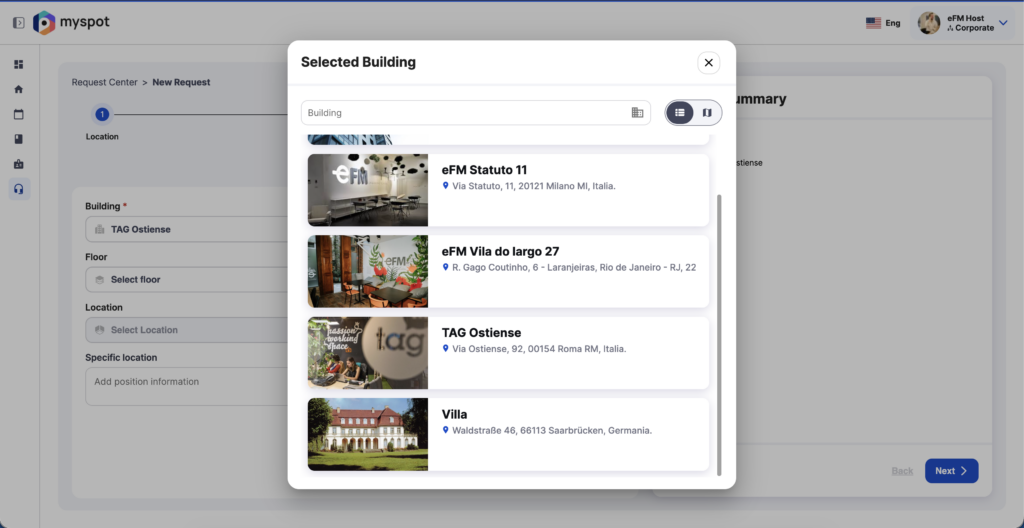
Click Select building to open the selection window. To rapidly find a specific building start typing the name in the Search bar.
From there, you can choose your site from the list or switch to the map and click the relevant pin.
List: browse and select from the building list
Map: pan/zoom and click the building pin
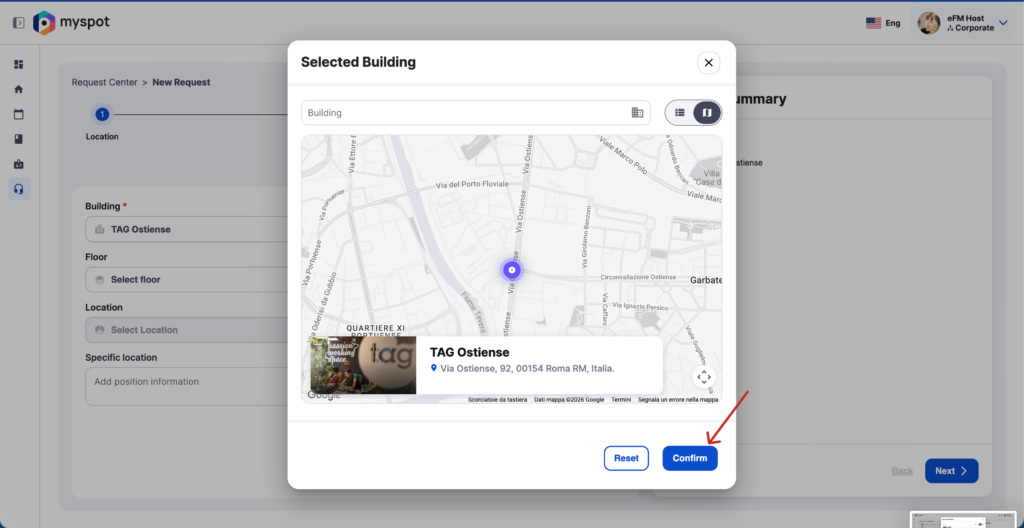
When you’ve found it, choose the building and click Confirm/Select to continue creating your request.
Disclaimer: Map and List view will only display 50 elements at a time. To find a specific building use the search bar.
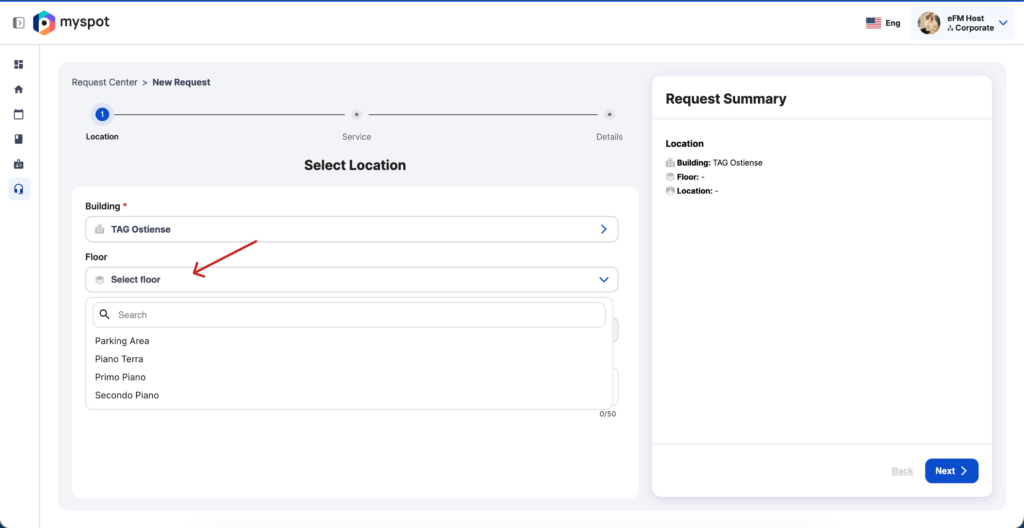
Select floor
Click Select floor to open the list, then choose the floor where you want to create the request.
Select location
Depending on how your system is configured, you may select the location or area from a list or a georeferenced floor plan, we will go over how both system works.
Dropdown: Select the Area from the a text list
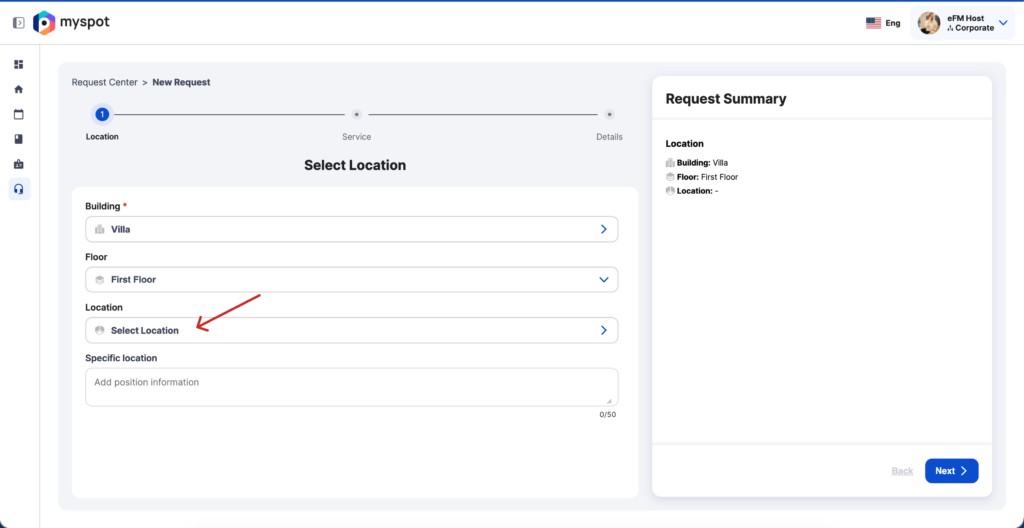
Click Select area to open the list, then choose the room or zone where you want to create the request. The list may include room names.
Map: Select the Area from a georeferenced floor plan
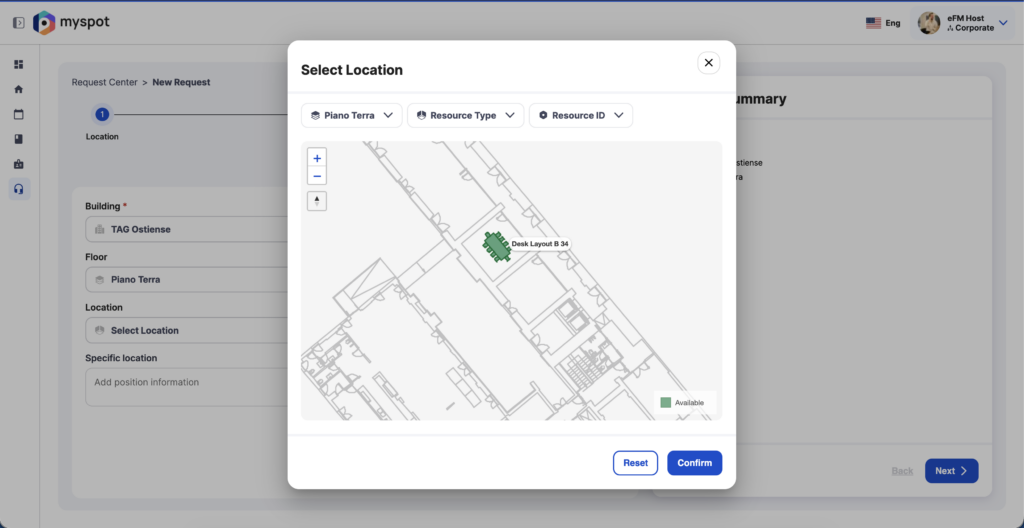
Click Select Area to open the floor plan. From here, you can pan, zoom, and click on the room or zone you need.
You’ll also find two filters :
-One to change the floor, in case you accidentally chose the wrong one.
-Another with the names of the building’s Area, allowing you to select directly from the list instead of using the floor plan.
Existing tickets are displayed on the plan. By clicking an existing request pin, you can view the details of open tickets and avoid creating duplicates.

When you select the desired area inside the building, the zone will be highlighted in blue. (If you select an area outside the building, the zone will not be highlighted, and only the blue pin will appear.)
The New Request blue pin will then appear along with the GPS coordinates , and the Confirm button will be activated.

When you’ve chosen the area, click Confirm to proceed.
Specific location description
Use the Specific location field to manually add precise details about the exact spot.
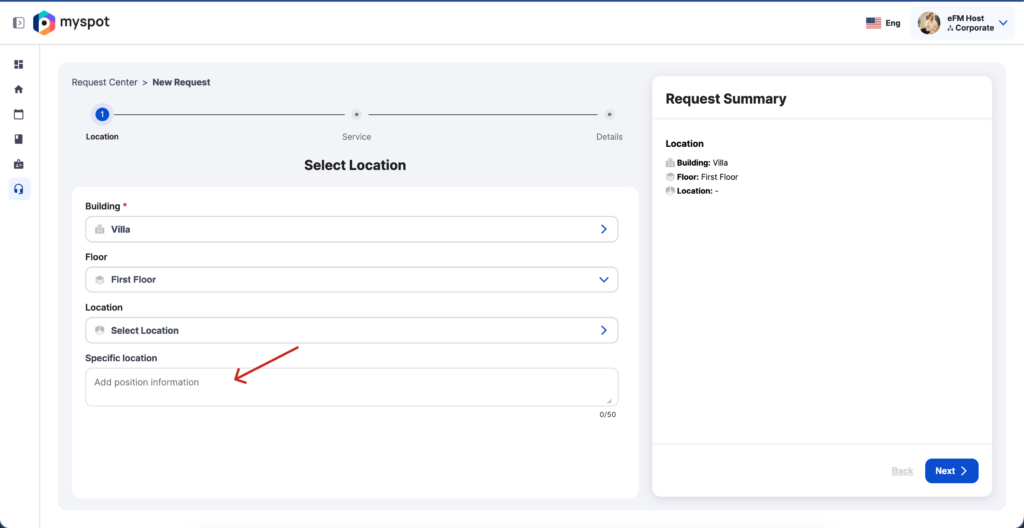
Required field are dependent on your specific company, they are marked by a * beside the field title.
When you have completed all the required field click on Next to continue to the following step Select Service.
Open request
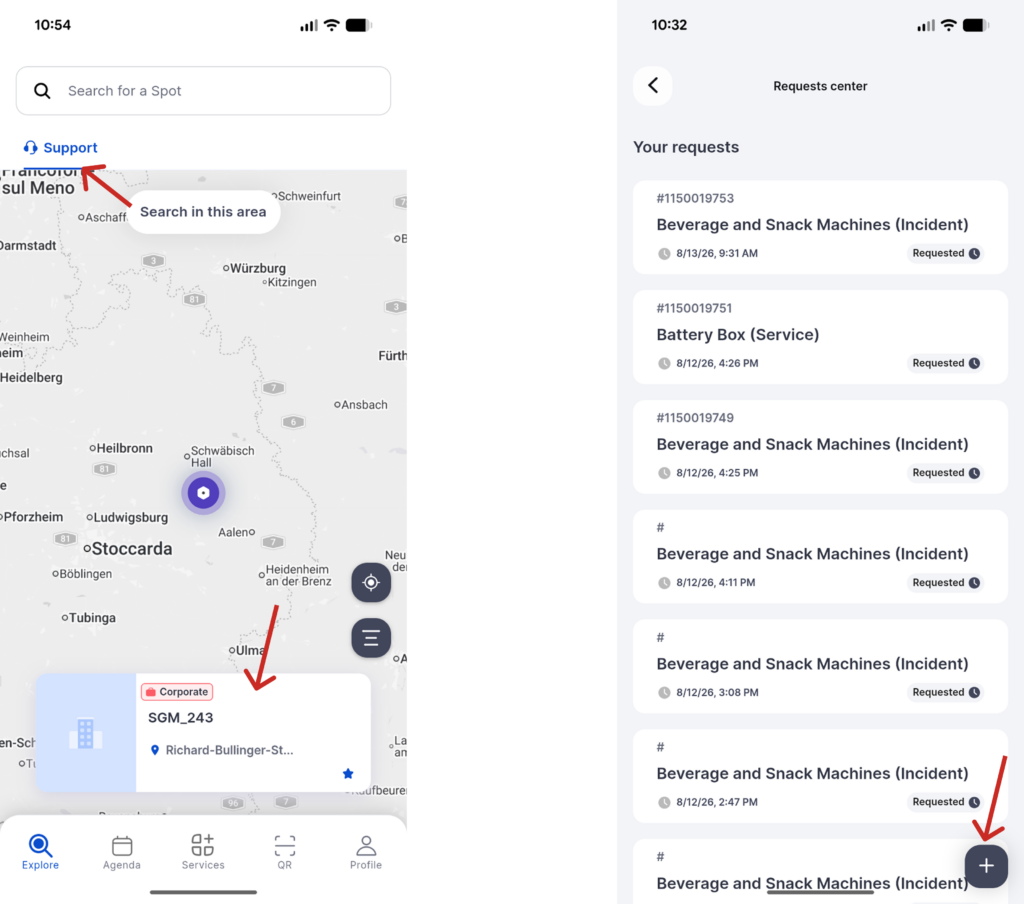
To open a New Request you can either:
– Select a building from Explore with Support tab selected
– Click the bottom right button New Request inside the request center
Select building
If you are not coming from the Explore page you will need to Select building from the list. To rapidly find a specific building start typing the name in the Search bar.
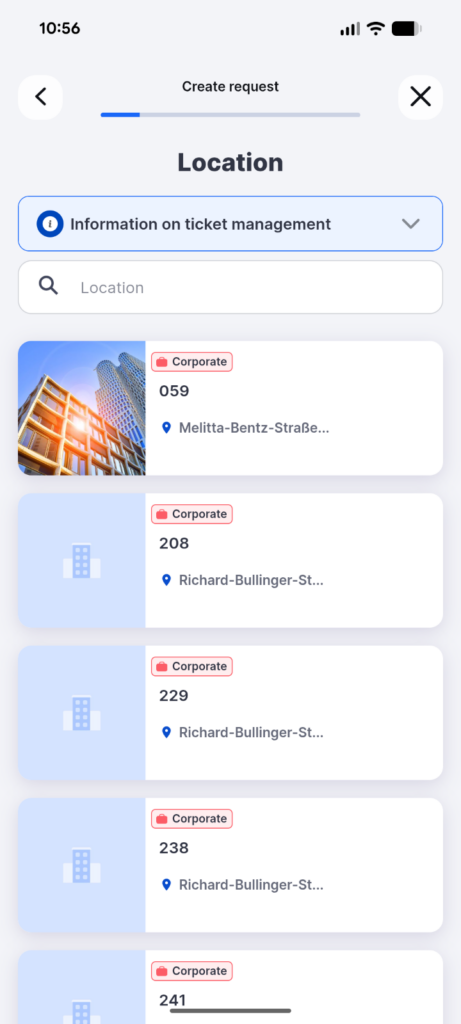
Unlike the Web version you will specify floor and location in a further step, click on Next to continue to the following step Select Service.